8. Mail Merge
All Past Paper Questions: https://docs.google.com/document/d/1p6zdtykNDrZA5Sp1qgBNfhbCnVpn8Ho6l8tciGi13IM/edit?usp=sharing
Chapter 1 -like
- proof reading
- why (source documents -> final version)
- software tools do not check for artistic / author styles errors
- for content issues
- check that all necessary content is present
- no unnecessary content is included
- confusion between homophones
- correct use of definite articles (prepositions)
- misplaced punctuations/commas/hyphens/apostrophes
- consistency in styles / conventions
- eg: date format
- correct formatting of quotations and citations
- inconsistent paragraph indentation and spacing
- missing or misplaced page numbers, headers and footers
- no unnecessary duplication of content
- correct regional spelling is being used
- correct context
- why (source documents -> final version)
Mail Merge
-
error prevention + elimination
- Use of tools in WP/DTP/applications to check for
- spelling errors.
- grammatical/punctuation errors.
- Use of tool
- e.g. select text and check then correct errors.
- (Proof)read the documents to check if all information is present.
- use verification to check for accuracy of data entry.
- validation to ensure data is sensible/acceptable.
- Check if
- source document is correct
- correct merge fields in the correct place.
- merge fields rules/code works
- Check correct spacing when document is merged.
- Check merge fields for correct formatting and fits to final document
- Use of tools in WP/DTP/applications to check for
-
merge field
- how (insert date when inviting)
- Use of fill-in field in the location of required date data
- set up to prompt for input of date
- only once
- Syntax is
{ FILLIN ["Prompt] [Optional switches] } - Prompt shows text to appear to user as merge proceeds
- 'Optional switches' determine how the typed in text is used
\d ""provides a default text within the quotes if no user input is provided\orequest prompt only once- and then appears in all subsequent merged invitations.
- how (insert date when inviting)
Syntax
-
IF-THEN-ELSE- condition to be met is defined
- if condition is met
- specific information selected
- else (not met)
- specific information selected
-
NEXT RECORD IF- used to compare two values
- compares contents of data field and value
- can use comparison operators
- eg: equal to, greater than, less than
- results of comparison determines whether to select record
-
SKIP RECORD IF- compared contents (of data field) to value
- if comparison is true
- current record not included in letter
Questions
Examples
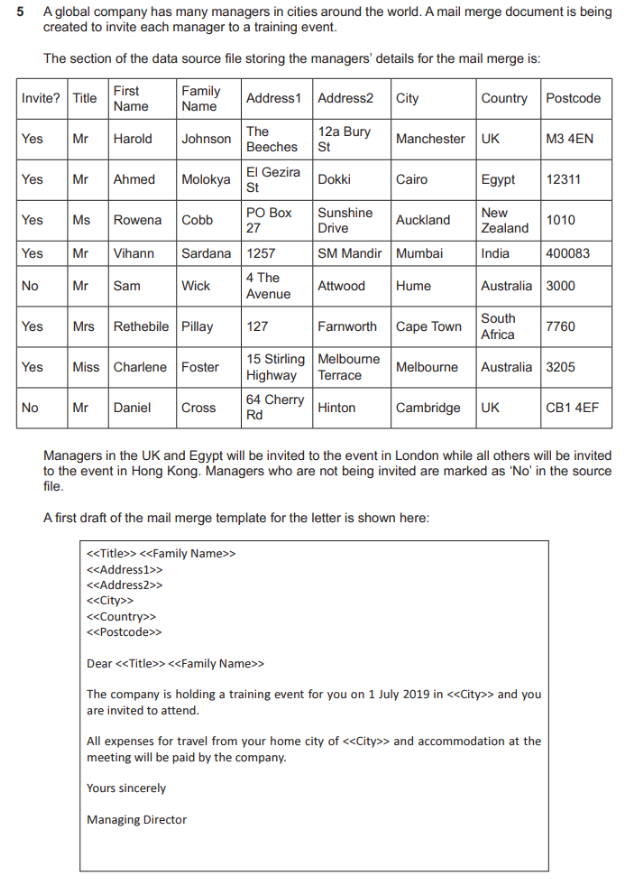
Mostly about sending to specific people only.
-
create letters to invited people only
- approach 1
- Filter the records in the data source on Invite? field
- To remove the "No" ryes" are selected
- Create new data source of "Yes" invites
- Use new source file for the mail merge.
- approach 2
- Use
SKIPIFfunction in a merge field - To skip "No" in Invite? field so that these are not used in the merge
- Example code:
{ SKIPIF "{ MERGEFIELD Invite? }" = "No" } - Place the
SKIPIFfield at beginning of the template - So the record is ignored early in process
- Use
- approach 1
-
to automatically select from chosen managers for month (and place them into invitations)
- use source file / database
- (linked to master document)
- master document with body of iniviation
- has fields placed
- in appropriate locations
- select data
- approach 1 (using SQL)
- can be selected with SQL
SELECTfrom source file
- can be selected with SQL
- approach 2 (normal)
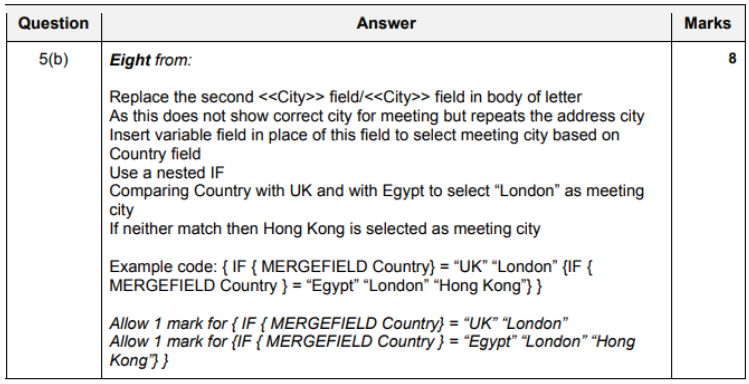
- use nested
IFto match names with condition- eg:
{ IF { MERGEFIELD Manager_Type } = "Month" }
- eg:
- use
SKIPIFto move over records that are not managers- eg:
{ SKIPIF <<Manager_Type>> } <> { =<<Month>> }
- eg:
- use
NEXT RECORD IFto compare manager type and move on
- use nested
- approach 1 (using SQL)
- use source file / database
Past Paper Questions
- question 1